
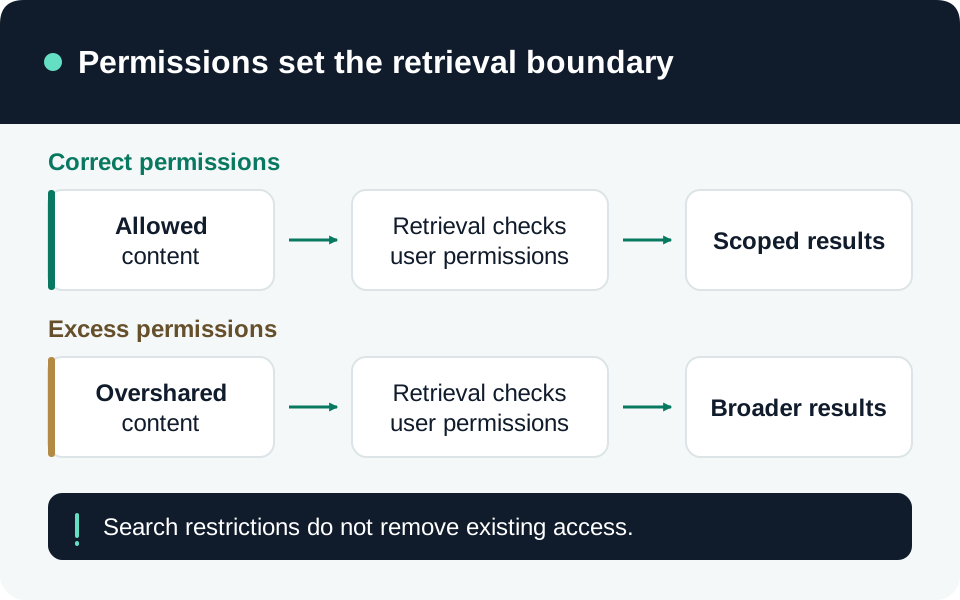
An oversharing campaign should end with a justified audience and verified permissions. A completed report or fewer Copilot search results is insufficient evidence. This playbook operationalizes the boundaries described in Copilot data boundaries; its proposed checks require validation in your tenant.
Prerequisites
Identify a SharePoint administrator, a business owner for each target site, and test users representing permitted and excluded audiences. Agree on a change window and recovery path for accidental removal of legitimate access.
Check your entitlement before planning automation. Microsoft distinguishes SharePoint Advanced Management capabilities from the more limited reporting available with Microsoft 365 E5 alone; reporting availability does not establish access to snapshot reports or remediation features. Data access governance prerequisites and reports.
1. Build a prioritized queue
In the SharePoint admin center, open Reports → Data access governance. When available, collect a permission snapshot and recent sharing activity. Snapshots describe state at report generation; activity reports describe changes within their reporting window. Neither should be treated as a complete historical access ledger. Report types.
Create one finding per actionable scope, with site or item identifier, report date, sensitive business process, observed audience, intended audience, owner, and due date. Prioritize sensitive content with unexpectedly broad access, then business impact and remediation effort. A large legitimate collaboration site is not automatically a security incident.
Separate confirmed unnecessary access from cases needing owner investigation. Record the exact grant path: site membership, group membership, a sharing link, or an individual permission. Removing one path may leave another intact.
2. Give owners a specific decision
Where supported, select the affected sites in a data access governance report and initiate site access reviews. Microsoft routes these reviews to site owners; the feature supports SharePoint sites, not OneDrive accounts. Assign a separate documented process for OneDrive findings. Site access review.
Ask owners to decide whether each broad audience remains necessary, who should retain access, and which workflow could break. Require an accountable substitute when the recorded owner is unavailable. Track pending, failed, accepted, and remediated cases separately rather than counting a sent review request as closure.
3. Remove the unnecessary access path
For each approved change, capture the original permission state in a restricted evidence location, record the intended replacement, and remove or narrow the specific grant. Work in small batches so owners can identify legitimate access failures. Avoid copying sensitive document contents into general ticket descriptions.
Restricted Content Discovery can temporarily reduce discovery of selected SharePoint content during cleanup, but it does not revoke access and has discovery-scope limitations. Document an owner and removal condition if you use it; do not substitute it for permission repair. Restricted Content Discovery.
4. Verify and close with evidence
Use synthetic or approved representative content and record the actual results:
| Check | Required evidence |
|---|---|
| Intended collaborator retains access | Successful direct access under that user’s identity |
| Excluded user loses access | Denied direct access, including a previously shared link |
| Alternative grant paths are resolved | Current groups, links, and item permissions inspected |
| Copilot behavior is understood | Controlled discovery test with identity, time, and propagation caveats |
| Business workflow still works | Owner confirmation against the agreed acceptance case |
Recheck search behavior after relevant propagation, but do not infer permission repair from a single missing result. Conversely, investigate a stale result separately from whether its underlying content remains accessible.
Close only with the changed scope, evidence, owner decision, and remaining exceptions. Common failures are treating report counts as unique affected people, overlooking inherited or duplicate grants, and leaving temporary discovery restrictions indefinitely. Schedule another permission review after major group, site, or organizational changes.
Go to the source